Getting Started
Common tasks in Data Refinery Designer (DR Designer) include logging in as well as creating data analysis Projects and Sources. On this page, a user will learn how to log in to Data Refinery. See the Projects page or Sources page to learn more about using Data Refinery.
Table of contents
How to Log In to Data Refinery
Depending on the company’s security policies and configuration, there can be multiple ways to access the DR Designer.
Log In via SSO
Whether a company and its users are linked to Microsoft, Google, Okta, or other platforms, Data Refinery can be linked to those platforms’ Single Sign-On (SSO) portal for convenient yet secure access.
In the following example, Microsoft 365 is used to explain how to access the Data Refinery site.
-
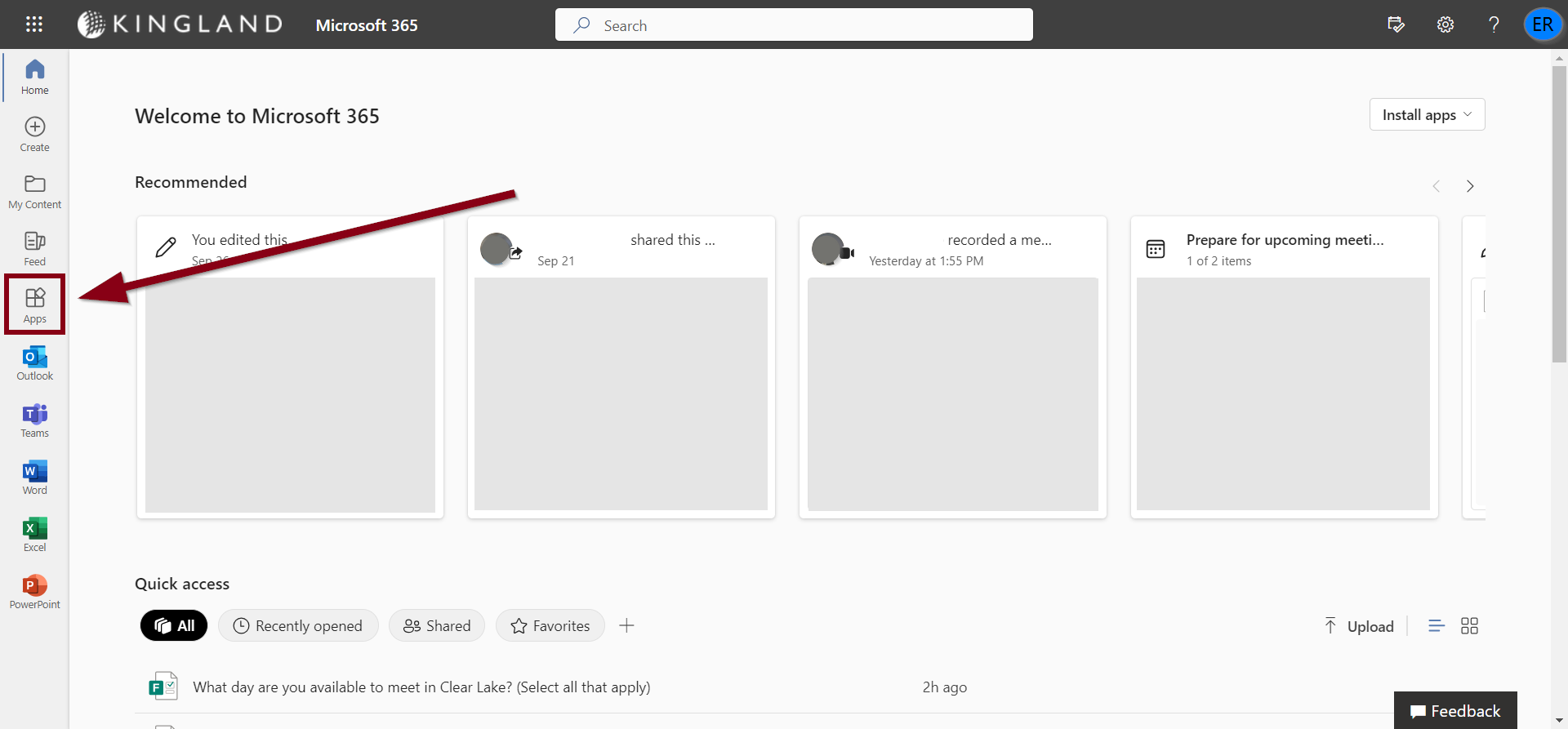
Once logged into Microsoft 365, click the Apps tab in the left navigational column.
-
When the Apps page has loaded, scroll and search for Data Refinery or select More in Other Apps to continue browsing.
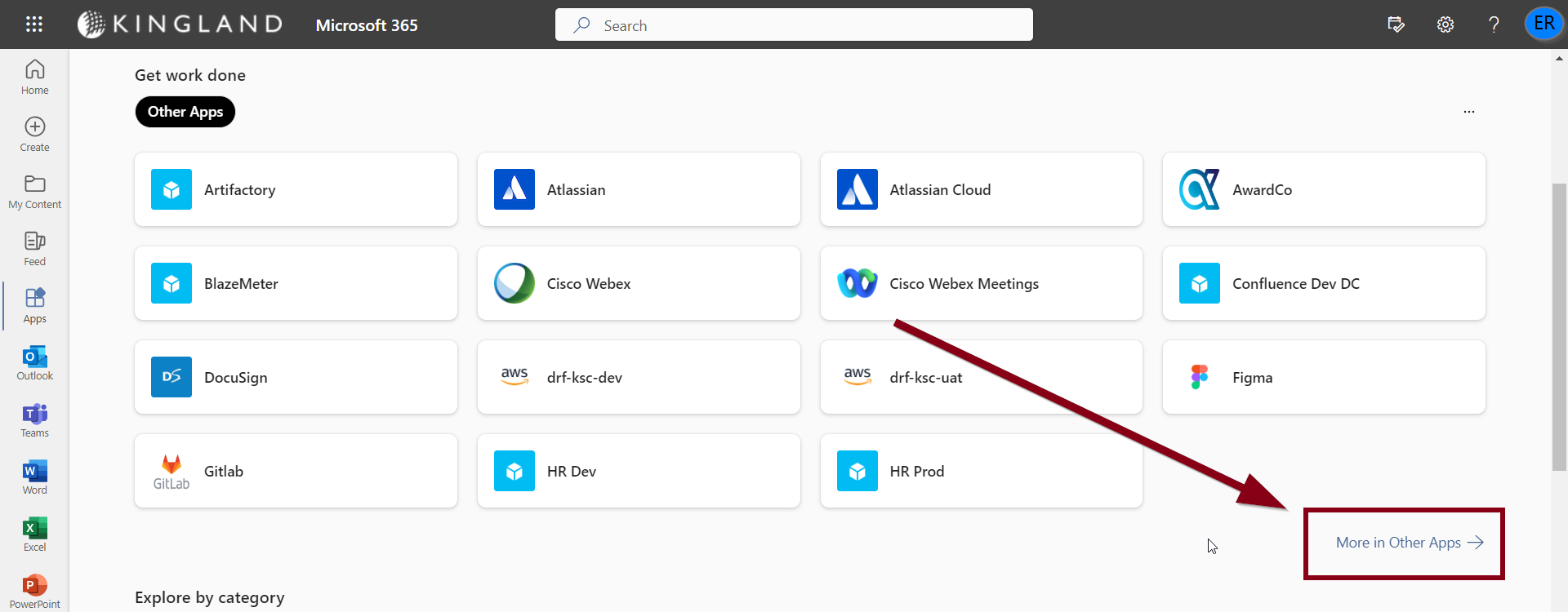
- Select the Data Refinery app.
- Once Data Refinery is selected, the site should open in a new tab and log in the user automatically.
-
After logging in for the first time via SSO, the user must reset their Redshift password to query data in DR Designer using a database connection.
To reset the Redshift password, review the Reset Redshift Password procedure.
Log In via SSO Button
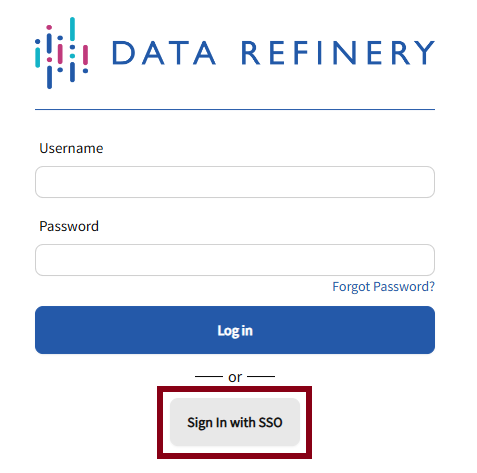
A user can also log in to Data Refinery Workbench by selecting the Sign In with SSO button on the login page.
Select the correct SSO Provider to log in.
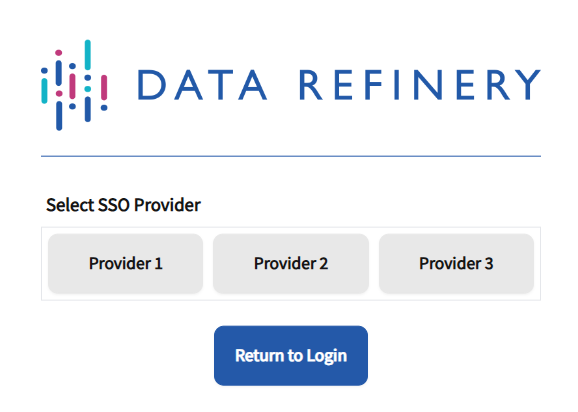
By doing so, Workbench will sign in the user and load the Projects page.
Log In With Data Refinery Username and Password
To log in to DR Designer without going through SSO, the user will need a username and password.
- Navigate to DR Designer.
- Insert the proper Username and Password into the correlating fields.
-
Click Log In.
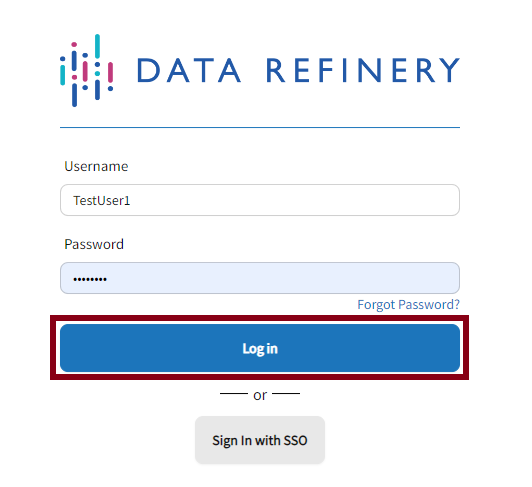
Note. A system administrator or users with USER_ADMIN or USER_CREATOR permissions have the proper access to create new users for Data Refinery. To learn more, see Permissions and Roles.
Forgot Password
If a user forgets their password, they can reset it by clicking the Forgot Password button on the login page.
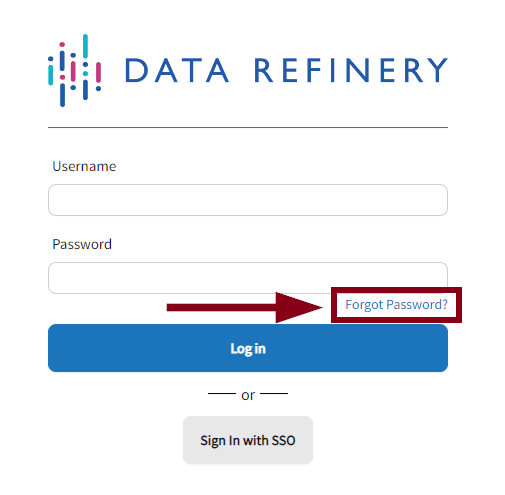
A form will appear, prompting the user to enter their email.
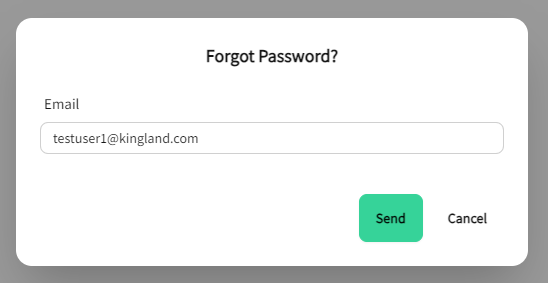
Once an email has been entered, click Send. After a few minutes, the user will receive an email with a link to reset their password.
When the user selects the reset password link, the user will be taken to a new page to reset their password:
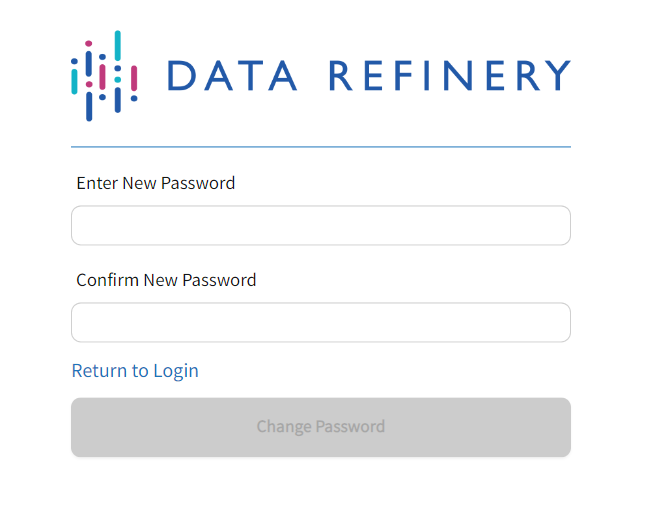
The new password must satisfy the following criteria:
- Must be between 8 and 46 characters.
- Must include at least one uppercase character, one lowercase character, and one number.
- The password cannot contain slashes (/), backward slashes(\), double (“) or single quotes (‘), and at signs (@).
- The first password field (“Enter New Password”) and the second password field (“Confirm New Password”) must match.
Upon satisfying these criteria, the user can click Change Password to reset their password. Once completed, the user can then log in with their new password.
Troubleshooting
After extended periods of inactivity, a user must re-authenticate to gain access to Data Refinery. This would require the user to sign back in or go through the SSO portal. Upon successful login, users will be automatically redirected to their last visited page.
If a user cannot access Data Refinery, please reach out to a system administrator.